Browse and copy
Drag files to your Mac like from any disk. Quick Look and opening files work too.
Guide
Finder can open a network disk with Connect to Server. With DiskBeam on your iPhone, that disk is your phone.
Your Mac and iPhone on the same Wi-Fi, your Mac on your iPhone's hotspot, or a cable between them.
Your iPhone now opens as a disk in Finder, in the sidebar under Locations.
Drag files to your Mac like from any disk. Quick Look and opening files work too.
Your Mac can't change anything until you switch on Allow your Mac to change files in DiskBeam (Pro).
Files your Mac copies in show up in the Files app under On My iPhone › DiskBeam.
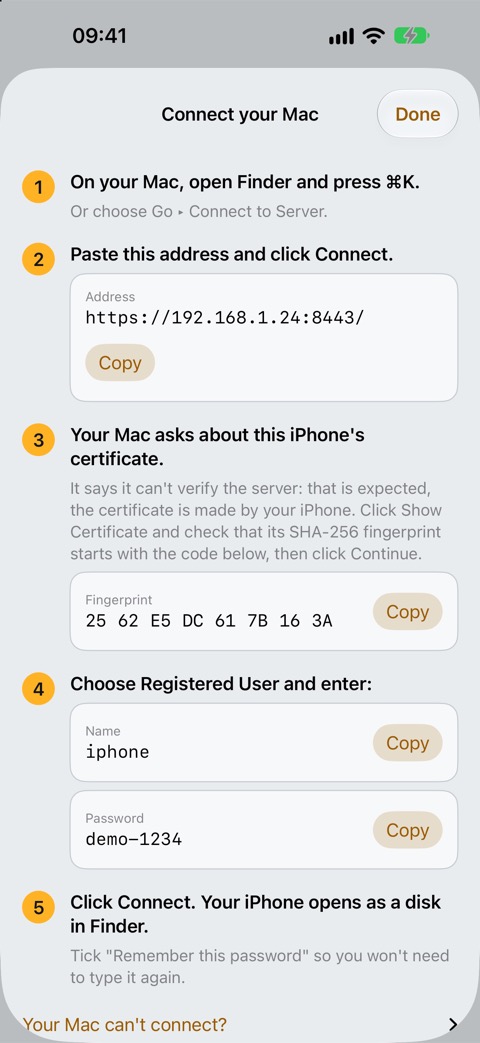
iOS has no USB disk mode, so a Mac can't mount an iPhone like a USB stick. DiskBeam serves the files over a network connection instead: Wi-Fi, the iPhone's hotspot or a cable between the two.
iPhone pauses apps in the background. Keep DiskBeam on screen while you copy; the disk continues when you come back.
Get DiskBeam, turn on the disk and press ⌘K on your Mac.
iOS 17+ · iPhone and iPad · No account